Gallery Videos for WooCommerce
WooCommerce plugin for WordPress
Show the product moving, right where shoppers already look
Add videos to the WooCommerce product gallery in any position, between your photos, without touching the theme. They play in the main slider and the full-screen lightbox, and image zoom keeps working exactly as before.
- Version
- 1.0.0
- WordPress
- 6.0 or later
- PHP
- 7.4 or later
Overview
Product videos that sit right inside your WooCommerce gallery
Gallery Videos for WooCommerce replaces the Product gallery box in the product editor with one list that holds images and videos together. You add images as you always have, add videos by upload, from the Media Library or by pasting a link, and drag everything into the order you want. The image order is still written to WooCommerce's own gallery field, so feeds, imports, themes and other plugins keep working, and deactivating the plugin leaves every image where it was.
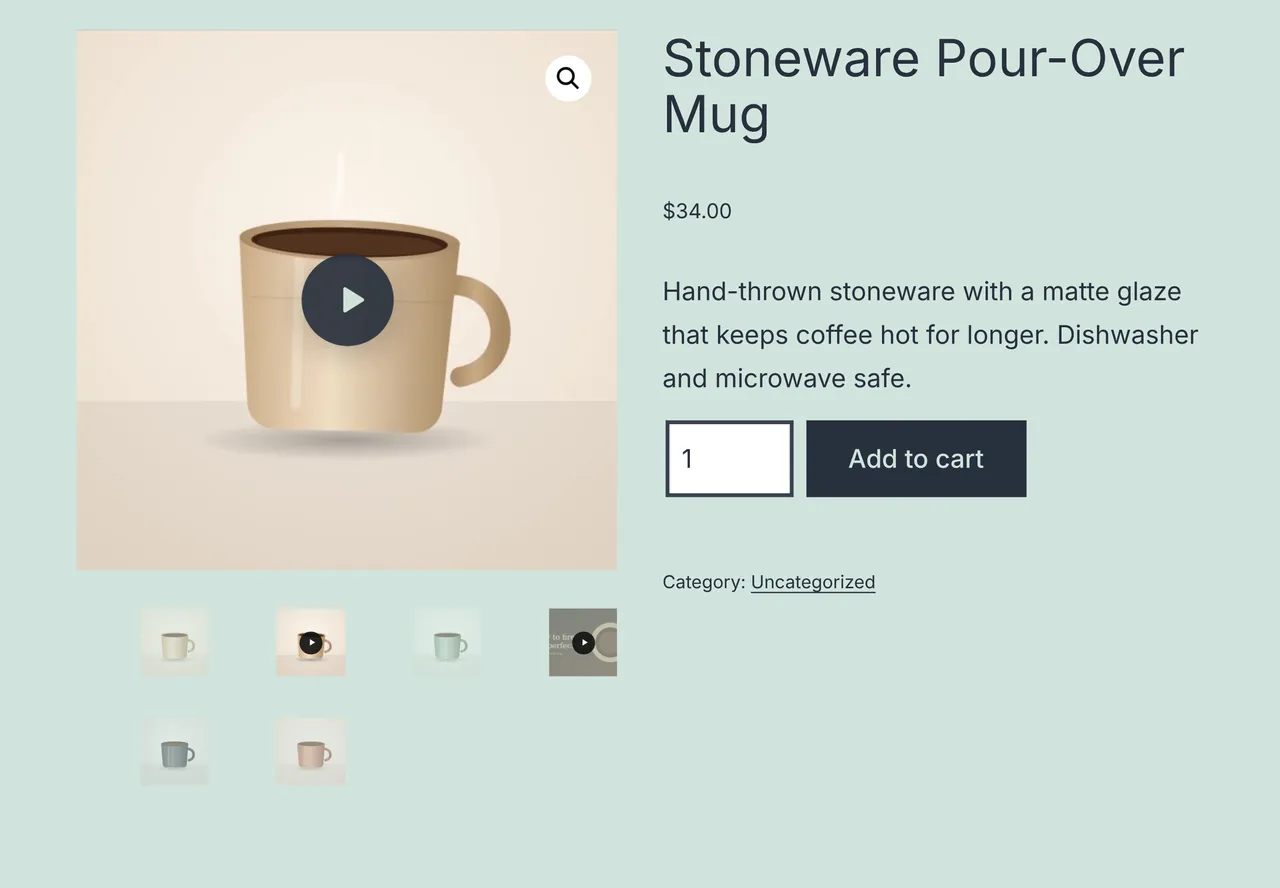
On the product page each video becomes a normal gallery slide with a clear play button and a play badge on its thumbnail. Because the plugin works through WooCommerce's own gallery hooks, the standard FlexSlider, PhotoSwipe lightbox and image zoom all carry on working, and videos pause the moment a shopper moves to another slide. It suits any store where a short clip sells better than a still photo: fashion, furniture, beauty, food, gadgets and handmade goods.
One gallery, any order
Images and videos share a single list in the product editor. Drag them into place and the storefront shows that order in the slider, the thumbnail strip and the lightbox.
Every common source
Upload MP4, WebM or OGG files, pick them from the Media Library, or paste a YouTube, Vimeo or direct video link. Posters are fetched or captured for you.
Fast and private by default
Shoppers see a lightweight poster until they press play. YouTube loads from youtube-nocookie.com and Vimeo runs in do-not-track mode, and only after that click.
Features
Everything inside Gallery Videos for WooCommerce
A complete list of what the plugin does, grouped the way you will use it.
Product editor
A single place to manage every image and video in the gallery.
Unified gallery box. Replaces the default Product gallery box with one sortable list of images and videos, each video marked with a play badge and its source.
Drag and drop ordering. Drag items into any order, or focus a thumbnail and use the arrow keys. The order is saved with the product and kept in sync with WooCommerce's gallery field.
Add videos three ways. Upload a file, choose one already in the Media Library, or paste a YouTube, Vimeo or direct MP4, WebM or OGG link.
Replace, edit and remove. Swap any item for another without losing its place, edit a video's settings, or remove it from the gallery while the file stays in your Media Library.
Clear warnings. Unsupported file types and links are rejected with a plain explanation, and files over 50 MB trigger a warning about loading speed.
Lead with a video. A per-product option puts the first video ahead of the main product image when the clip is the strongest first impression.
Video sources
The formats store owners actually use, handled without extra setup.
Self-hosted files. MP4, WebM and OGG files from the Media Library play in the browser's native player with playsinline support on phones.
YouTube. Watch, youtu.be, Shorts, embed and live links are all recognised, along with a start time, and play through the privacy-enhanced youtube-nocookie.com player.
Vimeo. Public and unlisted Vimeo links work, including the privacy hash in unlisted links, and play with Vimeo's do-not-track setting.
External video files. Direct links to MP4, WebM or OGG files on a CDN or another server are supported, and the option can be switched off in settings.
Posters and per-video settings
Each video can look and behave exactly as the product needs.
Automatic posters for links. YouTube and Vimeo thumbnails are downloaded into your Media Library when you add the link, so the storefront serves them from your own site.
Capture a frame. One click captures a frame from an uploaded video and saves it as the poster. It is stored on the video too, so other products using the same file get it automatically.
Custom poster. Choose any image from the Media Library as the poster, or remove it to fall back to the default.
Playback options. Autoplay, loop, muted and player controls can follow the store default or be set to on or off for each video.
Accessible title. Give each video a title that screen readers announce and that appears as the caption in the lightbox.
On the product page
Videos behave like part of the gallery, because they are.
Slides and thumbnails in your order. Videos appear in the main slider and the thumbnail strip in the saved order, each thumbnail with a play badge.
Pause on slide change. Moving to another slide pauses an uploaded video and removes a YouTube or Vimeo player, so two things never play at once.
Lightbox playback. The PhotoSwipe lightbox shows images and videos together in order and plays videos full screen. Videos pause when shoppers move on or close it.
Zoom still works. Image slides keep WooCommerce's hover zoom and lightbox exactly as before.
Responsive frame. Choose square, 16:9, 4:3, 3:4 or 9:16, or match your product image size, and videos scale cleanly on every screen.
Lazy posters. Posters load lazily like the rest of the gallery, and the video itself downloads only when a shopper presses play.
Variable products and shop pages
Extra places where a video helps a shopper decide.
Variation videos. Turn on variation videos and each variation gets its own video field. Selecting that variation shows its video over the main image, and clearing it returns the usual gallery.
Shop and category badges. An optional play badge on product images in shop, category and search listings shows which products have video.
Hover preview. On devices with a mouse, hovering a product in the listing can preview its uploaded video, with reduced-motion preferences respected.
Accessibility
Video that every shopper can use.
Real buttons. Play controls are focusable buttons with descriptive labels, so they work with the keyboard and screen readers.
No surprise sound. Autoplay is always muted, whatever the other settings say.
Reduced motion. Hover previews in listings are skipped for shoppers who ask their device for reduced motion.
Right-to-left ready. Layouts use logical CSS properties and ship RTL stylesheets for Arabic, Hebrew and other right-to-left languages.
Theme compatibility
Built on WooCommerce's standard gallery, with a safety net for themes that replace it.
Standard gallery themes. Built for themes that keep WooCommerce's gallery, such as Storefront, Astra, OceanWP, Kadence, Blocksy and GeneratePress. Divi, Avada and Flatsome layouts that keep the standard gallery work the same way.
Block themes. Works with the Product Image Gallery block in block themes such as Twenty Twenty-Five.
Fallback section. If a theme or builder draws its own gallery, the videos appear in a Product videos section placed directly below the gallery, after the summary or before the tabs, so they are never lost.
Shortcode. Place a product's videos anywhere with [gvwc_videos id="123"], for example inside a page builder layout.
Developer extras
Hooks and templates for agencies and theme developers.
Filters. gvwc_media_items, gvwc_video_html, gvwc_player_attributes, gvwc_embed_url, gvwc_enable_for_product, gvwc_load_frontend_assets, gvwc_allowed_mime_types, gvwc_large_video_bytes and gvwc_settings_fields.
Template overrides. Copy the video slide or fallback template into yourtheme/gallery-videos-for-woocommerce/ and edit the copy.
Translation ready. Every string is translatable and a .pot file is included for Loco Translate or Poedit.
Safety and recovery
Built so you can always get back
How Gallery Videos for WooCommerce protects your site while it works, and what to do if you ever need to switch it off.
Your gallery stays standard
Image order is always written to WooCommerce's own _product_image_gallery field, so deactivating the plugin leaves every product image in place.
Nothing loads before play
No YouTube or Vimeo script, iframe or cookie reaches the shopper's browser until they press play.
Permission checks
Every save and request checks a nonce and the edit products capability, and all input is sanitised before it is stored.
Safe poster uploads
Captured frames are accepted only as JPEG images under 8 MB, checked by content and file type before they reach the Media Library.
Assets only where needed
Scripts and styles load only on product edit screens and single product pages, plus shop listings when the shop badge is switched on. No extra libraries are added.
Clean uninstall on request
Video data and settings are kept when you delete the plugin unless you tick Remove data on uninstall. Product images and uploaded files are never deleted.
Store-wide compatibility
Declares compatibility with WooCommerce High-Performance Order Storage and the Cart and Checkout blocks.
Screenshots
Gallery Videos for WooCommerce, screen by screen
Real screens from the plugin running on a WordPress site. Select a screen to read about it, or click the image to view it full size.
Pricing
Choose your Gallery Videos for WooCommerce licence
Secure payment through Razorpay. Your licence key and download link are emailed as soon as the payment is confirmed.
Single Site
For one live website you own or manage.
₹7,999
Price in Indian rupees
- Licence for one website
- Licence key and download by email
- Plugin updates for your licence
- Help by email
Unlimited Sites
For agencies and owners of several websites.
₹12,999
Price in Indian rupees
- Licence for every website you run
- Licence key and download by email
- Plugin updates for your licence
- Help by email
- Ideal for agencies and client sites
Compatibility
Requirements and integrations
- WordPress
- 6.0 or later
- Tested up to
- WordPress 7.1
- PHP
- 7.4 or later
- Also needs
- WooCommerce 7.0 or later, tested up to WooCommerce 11.2
- A theme that uses WooCommerce's product gallery, or the fallback section for themes that replace it
- Uploaded videos are limited by your hosting's maximum upload size
Works with
- Uses WooCommerce's own gallery hooks, FlexSlider, PhotoSwipe and zoom scripts rather than replacing them.
- Works with the classic product template and the Product Image Gallery block in block themes.
- Themes and builders that draw their own gallery get the fallback Product videos section, with its position chosen in settings.
- Keep WooCommerce's own beta product gallery videos feature switched off while this plugin is active; the plugin shows a reminder if it is on.
- Declares compatibility with High-Performance Order Storage and the Cart and Checkout blocks.
- Fully translatable and right-to-left ready.
Good to know
- Does not place videos inside custom sliders built by a theme or page builder; those layouts get the fallback section instead.
- Does not place videos inside WooCommerce's newer Product Gallery block, which also gets the fallback section.
- Does not transcode or stream video; uploaded files are served by your hosting as they are, so YouTube or Vimeo suits long videos better.
- Cannot capture a poster frame from a video on another domain that blocks cross-origin access; choose a poster image instead.
- Does not play private YouTube videos or Vimeo videos restricted to other domains.
- Supports one video per variation, shown over the main image, rather than a full gallery per variation.
- Hover previews in shop listings play uploaded files only, not YouTube or Vimeo.
Changelog
What has changed
Current version: 1.0.0.
Version 1.0.0
- Initial release.
Documentation
Getting started with Gallery Videos for WooCommerce
Installation
- 1Make sure WooCommerce 7.0 or later is active, and the site runs WordPress 6.0 or later and PHP 7.4 or later.
- 2Go to Plugins, Add New, Upload Plugin, choose the plugin zip, then install and activate it.
- 3Open WooCommerce, Settings, Gallery Videos to review the defaults. The plugin works without changing anything there.
Adding videos to a product
- 1Edit a product. The Product gallery box in the right-hand column now has Add images, Add video (upload / library) and Add video by URL buttons.
- 2To upload, click Add video (upload / library) and drop in an MP4, WebM or OGG file, or pick one from the Media Library.
- 3To use YouTube, Vimeo or a file hosted elsewhere, click Add video by URL, paste the link and click Add video. The title and poster are filled in for you.
- 4Drag the thumbnails into the order you want, or focus one and use the arrow keys.
- 5Click Update to save the product.
Video settings and posters
- 1Hover over a video thumbnail in the Product gallery box and click the cog icon.
- 2Enter a title. Screen readers announce it and it appears as the lightbox caption.
- 3Click Choose image to pick a poster, or Use a frame from the video to capture one from an uploaded file.
- 4Set autoplay, loop, muted and controls to Store default, On or Off for this video, and a start time for YouTube or Vimeo.
- 5Click Done, then Update to save the product.
Store-wide settings
- 1Open WooCommerce, Settings, Gallery Videos.
- 2Choose the video shape: square, 16:9, 4:3, 3:4, 9:16 or matching your product image size.
- 3Set the default autoplay, loop, muted and controls behaviour.
- 4Pick the play button style and colours, and decide whether videos play in the lightbox.
- 5Switch on shop page badges and variation videos if you want them, and choose where the fallback section appears for themes that replace the gallery.
Variation videos
- 1Tick Variation videos in WooCommerce, Settings, Gallery Videos and save.
- 2Edit a variable product and open a variation under Product data, Variations.
- 3Paste a video link into Variation video, or click Choose from library.
- 4Save the variations. Choosing that variation on the product page now shows its video over the main image.
FAQ
Questions about Gallery Videos for WooCommerce
Something else on your mind? Write to us before you buy.
What happens to my existing gallery images?
Nothing changes. They appear in the new gallery box in their current order, and the plugin keeps WooCommerce's gallery field up to date. If you deactivate it, your images stay and only the videos disappear from the storefront.
Will videos slow down my product pages?
No video data downloads until a shopper presses play. The plugin's own files load only on product pages and come to about 6 KB once your server compresses them.
Does it work with my theme?
Any theme that keeps WooCommerce's product gallery gets videos inside the slider. If a theme or builder replaces the gallery with its own, the videos show in a Product videos section next to it, so they are never lost.
Can I use YouTube without cookies?
Yes. YouTube plays from youtube-nocookie.com and Vimeo runs in do-not-track mode, and neither loads until the shopper presses play.
Can each variation have its own video?
Yes. Switch on Variation videos in the settings and each variation gets a video field. Choosing that variation shows its video over the main image.
How large can uploaded videos be?
Your hosting's upload limit applies. The plugin warns you about files over 50 MB, because large files load slowly for shoppers. For longer videos, YouTube or Vimeo is usually the better choice.
Does autoplay play sound?
Never. Autoplaying videos are always muted, which is also what browsers require. Shoppers can unmute with the player controls.
WooCommerce has its own product video beta. Should I use it as well?
No. Keep WooCommerce's beta feature switched off while this plugin is active, or videos will show twice. The plugin shows a reminder if it notices the beta is on.