WP Total Migrate
Migration plugin for WordPress
Move whole WordPress sites and networks safely
WP Total Migrate packages your database, media, plugins and themes into one archive, then rebuilds the site on its new host only after you have previewed every URL change and confirmed.
- Version
- 1.1.0
- WordPress
- 6.0 or later
- PHP
- 8.0 or later, 8.1 or newer recommended
Overview
Whole-site WordPress migration with previewed URL changes and recovery backups
WP Total Migrate packages a WordPress site's database, media library, plugins, themes and other wp-content files into one portable .wptm archive, then rebuilds that site on another server. It handles the parts of a migration that usually go wrong: uploading large archives to hosts with small limits, rewriting URLs inside serialised plugin settings and page-builder data without corrupting them, and taking a recovery backup before anything is replaced. Nothing on the destination changes until you have previewed the URL changes and typed a confirmation word.
It is built for agencies, freelancers and site owners who move sites between hosts, domains, staging and live environments, and for administrators running WordPress Multisite. On a network it can move the whole network, pull one site out as a standalone install, or add a site to a network without touching the others. Very large sites can be handled entirely from WP-CLI, which reads multi-gigabyte archives in place on the server.
URL replacement that respects your data
Serialised values are rewritten with every string length recalculated, escaped JSON and URL-encoded data are matched, and a rule for old.com never rewrites addresses on old.com.au.
Nothing changes until you confirm
The database loads into staging tables, replacements are previewed with counts and examples, and you type REPLACE before a single atomic table switch.
Built for large sites and networks
Chunked, resumable uploads work within small host limits, and Multisite support covers whole networks, single sites and moves between the two.
Features
Everything inside WP Total Migrate
A complete list of what the plugin does, grouped the way you will use it.
Export
Choose exactly what goes into the archive and know its size before you start.
Four export types. Full website (the default), Database only, Files only, or Custom.
Custom export. Pick individual database tables, plugins, themes, the media library, must-use plugins and other wp-content folders.
Sensible default exclusions. Cache folders, other backup plugins' archives, temporary update files, debug.log, Wordfence runtime data, server-specific drop-ins and .git or .svn folders are left out, each with a stated reason and an untick option.
Your own exclusion patterns. Add patterns such as *.mp4 or uploads/2019, and every exclusion is recorded in the archive manifest.
Size estimate. The Export screen shows database, media, plugin and theme sizes and an estimated total before compression.
Archive naming. Name archives with a pattern using {site}, {date}, {time} and {mode}, with a random code always added so file names cannot be guessed.
Portable archive format
A purpose-built format that is streamed, checksummed and self-describing.
Streaming .wptm format. An append-only container written and read in small, resumable steps with constant memory use and no dependency on ZipArchive.
SHA-256 on everything. Every database part and file has a checksum, and the manifest itself is checksummed.
Manifest. Records what is inside, what was left out and why, and the source site details, including network details on Multisite.
Text compression. PHP, CSS, JavaScript, JSON, SQL and similar files are compressed inside the archive, which can be turned off in Settings.
Import with a review step
A guided import that validates everything and shows you the result before the live site changes.
Guided six-step flow. Upload and validate, replace URLs, review and confirm, import, validate the site, and read the report.
Full validation first. The archive's structure, manifest, paths and every checksum are verified before anything on the site changes.
Server checks before import. Database privileges are tested on a throw-away table, and disk space is checked before files are staged.
Staging tables. The database is loaded into separate staging tables, so URL changes are previewed on the real data.
Typed confirmation. You type REPLACE, or IMPORT when adding a new site to a network, before the site is replaced.
Import from storage. Archives already on the server, including your exports, recovery backups or files copied by SFTP, can be imported without uploading.
URL and domain replacement
Replacement that understands how WordPress and its plugins actually store addresses.
Serialisation-safe rewriting. Serialised PHP values are rewritten token by token with every string length recalculated, without unserialising, so no object from an archive is ever created.
JSON and URL-encoded data. Escaped-slash JSON used by Elementor, Gutenberg blocks and many plugins, and URL-encoded values, are matched as well.
Boundary-aware matching. Replacing https://old.com leaves https://old.com.au and https://old.community untouched, and a single pass means a move to example.com/blog never produces /blog/blog.
Variants and extras. Handles http and https, www and non-www, the old server folder path, the bare domain if you enable it, optional GUID updates and your own extra search and replace rules.
Preview with counts. Shows the values that will change, rows affected, per-table counts, examples of changes and the exact search strings used.
Corrupted data left alone. Values that already look like broken serialised data are left unchanged and listed in the report.
Large sites and chunked uploads
Designed around the limits of real hosting, so size is rarely the problem.
No plugin size limit. Practical limits are disk space, hosting quotas and upload time rather than the plugin.
Chunked, resumable uploads. Archives are sent in pieces sized to the server's POST and memory limits, and an interrupted upload resumes when you select the same file again.
Short, saved steps. Work runs in slices that finish well within the PHP time limit, with progress saved after every step.
Background processing with fallback. Runs in background requests, and if the host blocks them, the open browser tab takes over automatically, with browser-driven and WP-CLI-only modes also available.
Crash recovery. After an out-of-memory or timeout crash, the step is retried with smaller batches.
Resumable downloads. Archive downloads support HTTP range requests.
Recovery backups and history
Every migration leaves a clear record and a way back.
Recovery backup before import. On by default, a backup of the destination is made first, covering the whole network or only the replaced site on Multisite.
One-click restore. Restore any recovery backup from Migration History or the Import screen.
Migration History. Every export, import, backup and restore is recorded with source, destination, tables, files, URLs replaced, status, warnings and a downloadable log, searchable by job, archive or URL.
History survives migrations. The plugin's own tables are never exported or replaced, so your history stays intact.
Retention and cleanup. Keep the last N recovery backups (5 by default), while your own exports are never deleted automatically and abandoned temporary files are cleaned up daily or on demand.
Email notifications. Optionally receive an email when a migration finishes or fails.
Multisite
Network-aware migration for whole networks, individual sites and moves between the two.
Network Admin only. The plugin is network-activated, runs in Network Admin for super admins, and cannot be activated on a single site of a network.
Export a network or one site. Export the entire network with every site, user and setting, or one site with its tables, members, uploads and the plugins and theme it uses.
Network into network. Replaces the whole destination network, lets you review and edit each site's new address, and converts between sub-domain and sub-directory networks.
Site into network. Add an archived site as a new site or replace one existing site, leaving the other sites untouched and keeping you signed in.
Site into single site. One site of a network becomes an ordinary standalone WordPress site, with media moved out of uploads/sites and network-activated plugins kept active.
User account merging. Accounts are matched by email address, and authors, comments, links, WooCommerce orders, customers, download permissions, API keys and webhooks are remapped to the right accounts.
WP-CLI
Every stage of a migration can run from the command line.
Full command set. Commands for export, validate, import, sites, jobs, run, cancel, diagnostics and cleanup.
Dry run. import --dry-run validates, stages and previews replacements, then stops without changing the site.
Server-side archives. Import reads the archive in place, so multi-gigabyte files copied by SFTP never pass through a browser.
Security
Archives are treated as untrusted input and stored away from public access.
Administrators only. Requires manage_options on a single site or manage_network_options on a network, and every request checks permission and a security token, with rate limits on jobs and uploads.
Archives treated as untrusted. Paths are validated, and only plain CREATE TABLE and INSERT statements with literal values are executed, against staging tables only.
Private storage. Archives are stored outside the public web root where the server allows it, or in a protected folder that System Status tests.
Configuration never touched. wp-config.php, salts and database credentials are never exported or overwritten, and logs redact passwords, keys and salts.
Worker guard. An optional must-use plugin loads only WP Total Migrate during its own authenticated worker requests, so other plugins and the theme cannot interrupt a migration.
Safety and recovery
Built so you can always get back
How WP Total Migrate protects your site while it works, and what to do if you ever need to switch it off.
Review before replacement
The database is loaded into staging tables, URL replacement is previewed with counts and examples, and you type a confirmation word before anything changes.
Safe cancellation
Cancelling before the live site is touched removes temporary data and leaves the site unchanged. Cancelling is refused once destructive steps begin.
Atomic switch
Staging tables replace live tables with a single RENAME TABLE, which MySQL and MariaDB run atomically, and files are extracted to a staging folder before being moved into place.
Scoped recovery backup
A recovery backup is created before replacement, covering only what is being replaced. When a new network site is added and the import is cancelled or fails before the switch, the new site and its accounts are removed.
Previous tables kept
If an import is interrupted after the switch, the previous tables stay in the database under a temporary wptmold name, alongside the recovery backup.
Post-import validation
Checks home and site URLs, the network site list, that all imported tables exist, that core row counts match the archive, user results, files written and that the home page responds.
Restore and checklist
Restore puts the database and archived files back, and an after-import checklist covers sign-in, permalinks, caches, Elementor pages, WooCommerce, media, SSL and scheduled tasks.
Screenshots
WP Total Migrate, screen by screen
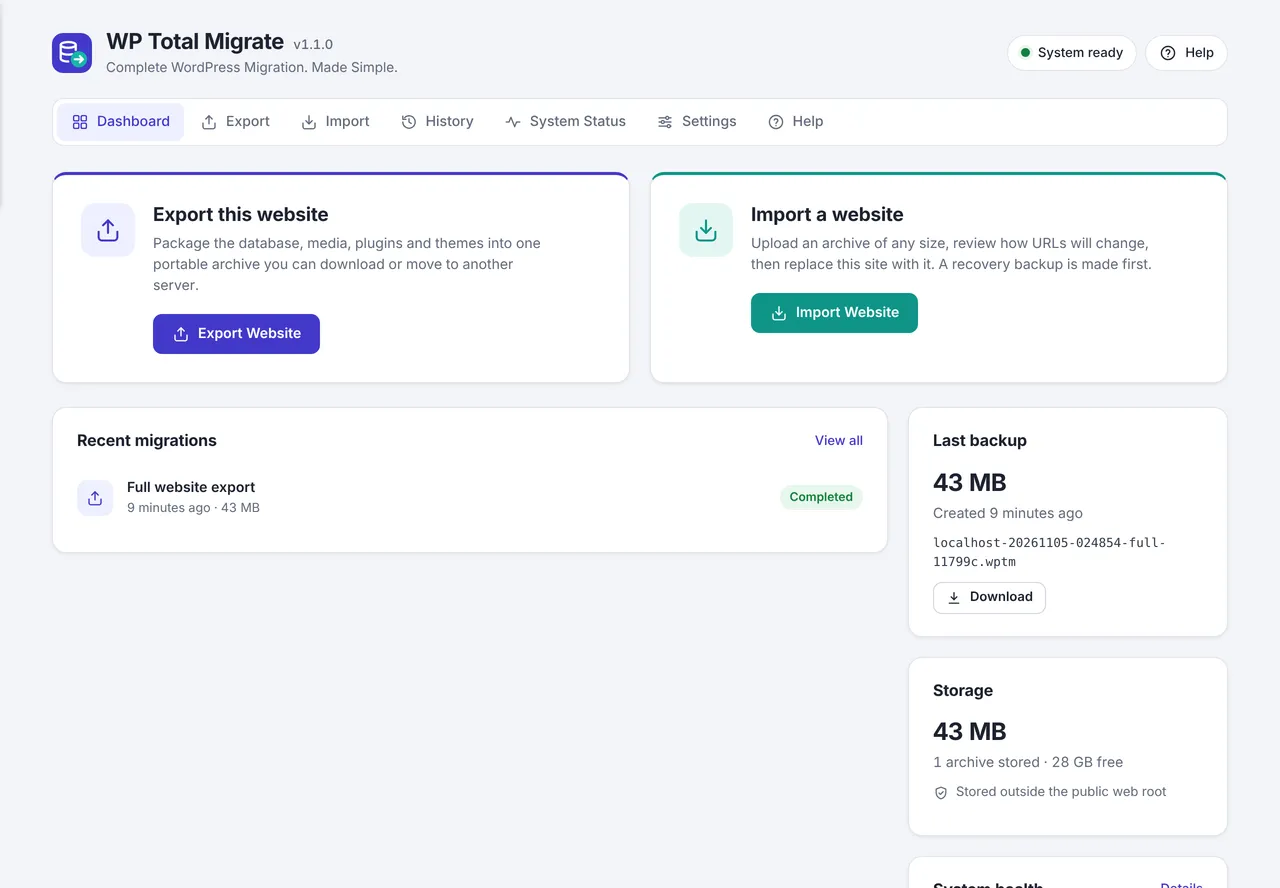
Real screens from the plugin running on a WordPress site. Select a screen to read about it, or click the image to view it full size.
Pricing
Choose your WP Total Migrate licence
Secure payment through Razorpay. Your licence key and download link are emailed as soon as the payment is confirmed.
Single Site
For one live website you own or manage.
₹11,999
Price in Indian rupees
- Licence for one website
- Licence key and download by email
- Plugin updates for your licence
- Help by email
Unlimited Sites
For agencies and owners of several websites.
₹21,999
Price in Indian rupees
- Licence for every website you run
- Licence key and download by email
- Plugin updates for your licence
- Help by email
- Ideal for agencies and client sites
Compatibility
Requirements and integrations
- WordPress
- 6.0 or later
- Tested up to
- WordPress 7.1
- PHP
- 8.0 or later, 8.1 or newer recommended
- Also needs
- A 64-bit PHP build, so archives over 2 GB work
- MySQL or MariaDB, with a database user that has CREATE, DROP, ALTER, INDEX, INSERT, UPDATE and DELETE privileges
- A max_allowed_packet of 16 MB or more is recommended
- PHP extensions zlib, hash and JSON; ZipArchive is not needed
- Enough disk space for the archive, the extracted files and the recovery backup
Works with
- Elementor: JSON layouts are rewritten in escaped form, and the Import screen offers to regenerate Elementor CSS after import.
- WooCommerce: detected on import, with customer and order data remapped when accounts merge into a network.
- Page builders and plugins in general are handled through serialised, JSON and URL-encoded replacement.
- Hosts: built-in handling for small upload limits, blocked loopback requests, short time limits, low memory, DISABLE_WP_CRON, open_basedir and persistent object caches.
- Databases: MySQL and MariaDB, with unsupported collations falling back to a compatible one and MariaDB-only table options stripped for MySQL.
- Other backup plugins: their archive folders are excluded from exports by default.
- Multisite: sub-domain and sub-directory networks, with sub-domain networks needing wildcard DNS and SSL on the destination.
Good to know
- Does not import a whole network into a single-site install.
- Does not move wp-config.php, salts or database credentials; the destination keeps its own configuration.
- Does not roll back automatically after a successful import; you restore the recovery backup instead.
- Does not keep the destination's users when a whole site or network is replaced; you sign in with an account from the archive afterwards.
- Does not import a network unless the archived main site ID matches the destination's, or BLOG_ID_CURRENT_SITE is set.
- Does not run more than one migration job at a time.
Changelog
What has changed
Current version: 1.1.0.
Version 1.1.0
- New: WordPress Multisite support. Export the whole network or one site, and import a network into a network, a site into a network as a new or replacement site, or one site of a network into a single site.
- New: user accounts are merged by email address when a site joins a network, with post authors, comments, links, WooCommerce customers and edit history remapped to the right accounts.
- New: site addresses can be reviewed and changed for every site of an imported network, and sub-domain networks convert to sub-directory networks and back.
- New: recovery backups of only the replaced site; a new site needs no backup, and cancelling removes it again.
- New: network checks in System Status for network type, activation, sunrise.php, legacy upload folders and wildcard DNS.
- New: WP-CLI sites command and network options for export and import.
- Improved: media in a site's own uploads folder are linked correctly after moving between a network and a single site.
- Fixed: the WordPress section of System Status stayed empty.
Version 1.0.0
- First release.
Documentation
Getting started with WP Total Migrate
Installation
- 1Upload the wp-total-migrate folder to wp-content/plugins, or use Plugins, Add New, Upload Plugin.
- 2Activate it. On Multisite, network-activate it from Network Admin, Plugins.
- 3Open WP Total Migrate and check System Status, fixing any items marked Action needed.
- 4Optionally review Settings for the storage folder, processing mode and notifications.
Exporting
- 1Open Export. On a network, choose Entire network or One site.
- 2Choose Full website, Database only, Files only or Custom.
- 3Review the default exclusions, add patterns if needed and optionally name the archive.
- 4Click Export Website and follow the progress, or run wp total-migrate export.
- 5Download the .wptm archive and store it privately, as it contains user accounts and password hashes.
Importing
- 1Install WordPress and WP Total Migrate on the destination.
- 2Open Import and drop in the archive, or pick one from storage or a file copied by SFTP.
- 3Wait for validation. On a network, choose a new or replacement site, how accounts are handled, or each site's address.
- 4Set the old and new URL and options, then click Preview replacements.
- 5Choose the import options, with the recovery backup on by default, type REPLACE or IMPORT, and confirm.
- 6Review the report and validation, sign in again and work through the checklist.
- 7To use WP-CLI instead, run wp total-migrate import with your file, --new-url and --dry-run first, then run it again without --dry-run.
Restoring
- 1Open History, or Import, Import from storage, and find the recovery backup.
- 2Click Restore, review the details and confirm.
- 3With WP-CLI, run wp total-migrate import with the path to the backup in the recovery backups folder.
- 4If an import stopped after the database switch, the previous tables are also kept under a wptmold name until you remove them.
WP-CLI commands
wp total-migrate export [--mode=full|database|files] [--exclude=<patterns>] [--include-core] [--name=<name>] [--network] [--site=<id or address>]
wp total-migrate validate <file>
wp total-migrate import <file> [--new-url] [--old-url] [--skip-backup] [--skip-database] [--skip-files] [--replace-core] [--www] [--skip-paths] [--dry-run] [--yes]
wp total-migrate import <file> [--as-new-site] [--site-url=<url>] [--replace-site=<site>] [--users=merge|skip] [--map="old=new,..."]
wp total-migrate sites [--format=table|json|csv]
wp total-migrate jobs [--format=table|json|csv]
wp total-migrate run <id>
wp total-migrate cancel <id>
wp total-migrate diagnostics
wp total-migrate cleanup
FAQ
Questions about WP Total Migrate
Something else on your mind? Write to us before you buy.
Is there a maximum archive size?
Not in the plugin. The limits are disk space, hosting quotas and upload time. For archives of many gigabytes, copy the file by SFTP and run wp total-migrate import on the server.
My host has a 2 MB upload limit. Will it work?
Yes. Uploads are split into chunks that fit the server's POST and memory limits, and an interrupted upload resumes when you select the same file again.
Will URLs inside Elementor and plugin settings be updated?
Yes. Serialised arrays, JSON with escaped slashes and URL-encoded values are all handled, and a preview shows per-table counts before you confirm.
What if the import is interrupted?
Before the database switch, the live site is untouched and work resumes from the last saved step after a timeout or crash. After the switch, the previous tables remain under a temporary name and the recovery backup can be restored.
What happens to my login?
When a whole site or network is replaced, sign in with an administrator account from the source. When a site is added to a network or replaces one site of it, your current login keeps working.
Does it support Multisite?
Yes, since version 1.1.0. It handles whole networks, single sites, network to network moves including sub-domain and sub-directory conversion, sites into a network as new or replacement sites, and one site of a network to a standalone install.
Can anyone download my archives?
No. Downloads need an administrator login and a security token, and archives are stored outside the web root where possible or in a protected folder that System Status verifies.
How should I store exported archives?
Keep them private. An archive contains your user accounts and password hashes, so treat it with the same care as a database backup.